Legacy Documentation
Desktop And Mini DBA Server
Legacy Documentation Home
alerts
analysisservicesalerts
analysisservicescpu
analysisservicesdashboard
analysisservicesdatabases
analysisservicesio
analysisservicessessions
azurealerts
azuredatabase
azuredatabasehealthcheck
azureindexes
azurelocks
azure security
azuresessions
azuresql
azuresqldatabase
azuresqldatabasedashboard
azuresqldatabases
azure sql server dashboard
azuretables
azurewaits
compare performance baseline
connections
cpu
custom sql server alerts
database
database query performance
databases
defaulttrace
dm exec query statistics xml
documentation
errorlog
files
gettingstarted
healthcheck database
healthcheck sql server
history active
history blocking
history data storage
history deadlocks
history files
history memory
history viewer
history waits
howtoperformancetuneazuresqldatabase
how to performance tune sql server
how to sql server performance tuning
how to sql server query tuning
indexes
Installation
io
License Support
locks
maintenance windows
options
performance history
security
server
servergettingstarted
Server Installation
server memory
serveroptions
serversecurity
servertroubleshooting
sql database memory
sql execution plan
sql extended event sessions
sql server activity
sql server alert configuration
sql server alerts
sql server database
sql server execution plan view
sql server index defrag jobs
sqlserverindexfragmentation
sql server index fragmentation
sql server index maintenance
sql server live query statistics
sqlserverqueryperformance
sql server query performance
sql server send slack alerts
sql server send teams alerts
sql server transaction log
sql server wait statistics
tables
tranlog
waits
webmonitorconfigure
webmonitorconnections
webmonitorcurrent
webmonitorcustom
webmonitorenterprise
webmonitorgettingstarted
webmonitorhistoric
webmonitorinstallation
webmonitorio
webmonitormemory
webmonitoroptions
webmonitoroverview
webmonitorsecurity
webmonitorwaits
wmi
After installing and configuring Mini DBA Server you can connect to it from either Mini DBA Desktop or Mini DBA Web Monitor. The examples on this page use Mini DBA Desktop but are very similar to Web Monitor.
Connecting from Mini DBA Desktop, from the menu select Mini DBA Server > Connect:
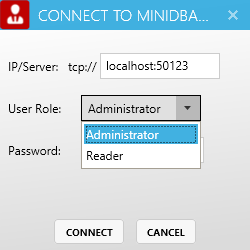
The password for the server roles was optional so may not have been set so may not be necessary here.
The Administrator role differs from the Reader role in that administrators can change server options and also add and remove monitored SQL Servers.
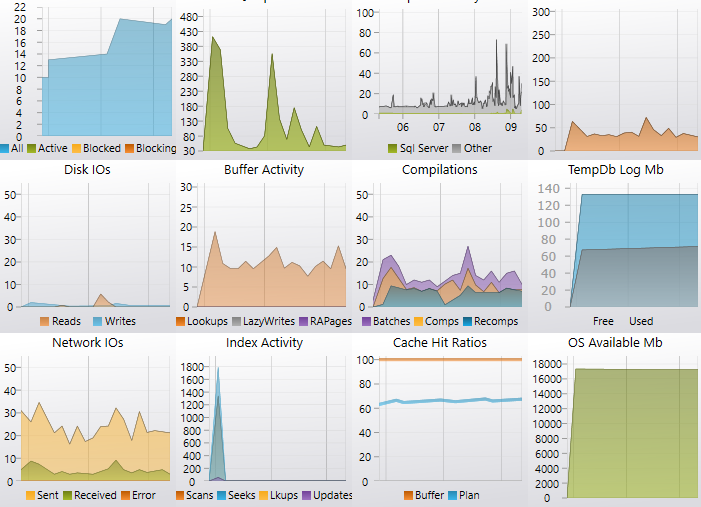
The following screenshot shows Desktp in DIRECT connection mode - which is disconnected from Mini DBA Server and accessing database servers diectly.

The following screenshot shows Desktop in SERVICE connection mode - which is connected to Mini DBA Server.

All other clients connected to the Mini DBA Server (Desktop or Web Monitor) will automatically have the newly connected SQL Server appear on their screens as soon as the service connects to it.
If you have multiple servers to monitor click the plus button above the server explorer window to add more servers (enterprise edition only)
The final step of Mini DBA Server configuration is to set the options
Connecting from Mini DBA Desktop, from the menu select Mini DBA Server > Connect:
The password for the server roles was optional so may not have been set so may not be necessary here.
The Administrator role differs from the Reader role in that administrators can change server options and also add and remove monitored SQL Servers.
Desktop Connection Status
Mini DBA Desktop operates almost identically when connecting directly to database servers or while connected to a Mini DBA Server. The title bar at the top of the application is where you can se if you are connected to Mini DBA Server or not:The following screenshot shows Desktp in DIRECT connection mode - which is disconnected from Mini DBA Server and accessing database servers diectly.
The following screenshot shows Desktop in SERVICE connection mode - which is connected to Mini DBA Server.
Once Connected
-
If the server is not monitoring any SQL Servers yet and you are logged in as Administrator you will be prompted to enter SQL Server instance details to connect to.
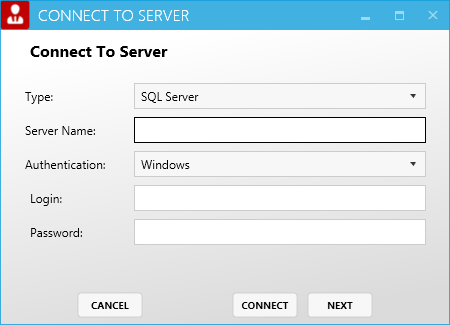
- Server Name: If you are connecting to a named instance then include that here
- Authentication: If the minDBA Server windows service logon account gives you enough permission on the SQL Server being connected to then leave authentication as windows. If you need to use SQL Server authentication including name and password then choose that here. Note: passwords are encrypted by Mini DBA using built in Windows encryption functions to ensure no sensitive data is held unencrypted by Mini DBA.
- Click Finish
- Mini DBA Server will now be connected to the specified SQL Server instance, its server explorer visible in the left pane of Mini DBA Desktop and its server level dashboard in the right.
- The status bar at the bottom of the screen indicates what permissions you have on the server and that Mini DBA is currently sampling the server every 5 seconds.
- If at any time you would like to change how often the server is sampled right click its node in the left hand server explorer, select settings then alter the sample rate.
All other clients connected to the Mini DBA Server (Desktop or Web Monitor) will automatically have the newly connected SQL Server appear on their screens as soon as the service connects to it.
If you have multiple servers to monitor click the plus button above the server explorer window to add more servers (enterprise edition only)
The final step of Mini DBA Server configuration is to set the options