Legacy Documentation
Desktop And Mini DBA Server
Legacy Documentation Home
alerts
analysisservicesalerts
analysisservicescpu
analysisservicesdashboard
analysisservicesdatabases
analysisservicesio
analysisservicessessions
azurealerts
azuredatabase
azuredatabasehealthcheck
azureindexes
azurelocks
azure security
azuresessions
azuresql
azuresqldatabase
azuresqldatabasedashboard
azuresqldatabases
azure sql server dashboard
azuretables
azurewaits
compare performance baseline
connections
cpu
custom sql server alerts
database
database query performance
databases
defaulttrace
dm exec query statistics xml
documentation
errorlog
files
gettingstarted
healthcheck database
healthcheck sql server
history active
history blocking
history data storage
history deadlocks
history files
history memory
history viewer
history waits
howtoperformancetuneazuresqldatabase
how to performance tune sql server
how to sql server performance tuning
how to sql server query tuning
indexes
Installation
io
License Support
locks
maintenance windows
options
performance history
security
server
servergettingstarted
Server Installation
server memory
serveroptions
serversecurity
servertroubleshooting
sql database memory
sql execution plan
sql extended event sessions
sql server activity
sql server alert configuration
sql server alerts
sql server database
sql server execution plan view
sql server index defrag jobs
sqlserverindexfragmentation
sql server index fragmentation
sql server index maintenance
sql server live query statistics
sqlserverqueryperformance
sql server query performance
sql server send slack alerts
sql server send teams alerts
sql server transaction log
sql server wait statistics
tables
tranlog
waits
webmonitorconfigure
webmonitorconnections
webmonitorcurrent
webmonitorcustom
webmonitorenterprise
webmonitorgettingstarted
webmonitorhistoric
webmonitorinstallation
webmonitorio
webmonitormemory
webmonitoroptions
webmonitoroverview
webmonitorsecurity
webmonitorwaits
wmi
Once installed the service logon account should be set to something other than "Local System Account". Although this account will normally allow the service to run it is more convenient to use a network account that has sufficient permissions on the SQL Servers that will be monitored, so Windows credentials can be used to connect to all SQL Servers.
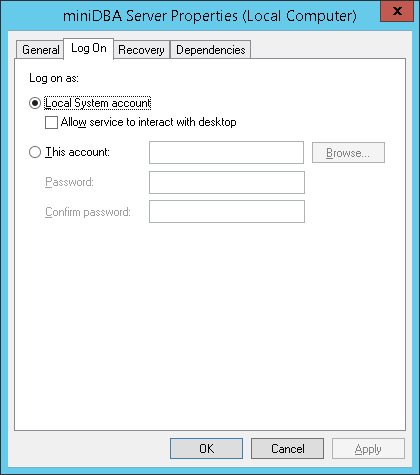
The above screenshot shows the logon being set to "Local System Account" which normally has enough permissions locally to access all the resources it needs to.
It is recommended that you use an existing or create a new network account that has permissions to access files on the local server and also the correct permissions on the SQL Servers that will be accessed.
The Windows account needs FULL CONTROL permission on the 'C:\ProgramData\Mini DBA' Server folder.
The VIEW SERVER STATE permission is the minimum that the network account should be granted on each SQL Server to allow Mini DBA to monitor it.
Databases will only be visible to Mini DBA if the login being used by Mini DBA has VIEW DATABASE STATE permission for each database.
Mini DBA cannot tell you this information if it does not have VIEW DATABASE STATE so run this query to see which databases the current login has the permission for:
See the trouble shooting page if you have any issues or go to getting started for your next steps.
The above screenshot shows the logon being set to "Local System Account" which normally has enough permissions locally to access all the resources it needs to.
It is recommended that you use an existing or create a new network account that has permissions to access files on the local server and also the correct permissions on the SQL Servers that will be accessed.
The Windows account needs FULL CONTROL permission on the 'C:\ProgramData\Mini DBA' Server folder.
The VIEW SERVER STATE permission is the minimum that the network account should be granted on each SQL Server to allow Mini DBA to monitor it.
Databases will only be visible to Mini DBA if the login being used by Mini DBA has VIEW DATABASE STATE permission for each database.
Mini DBA cannot tell you this information if it does not have VIEW DATABASE STATE so run this query to see which databases the current login has the permission for:
    DECLARE @sql varchar(2000)
    DECLARE @db varchar(200)
    DECLARE @dbs3 table(name varchar(200))
    CREATE TABLE [#perms_{1}] (db varchar(200), [perm] varchar(100))
    INSERT @dbs3 (name) select name from sys.sysdatabases WHERE ISNULL(HAS_DBACCESS ([Name]),0)=1

    SET @db = (select top(1) name from @dbs3  )
    print @db
    WHILE @db is not null
    BEGIN
    set @sql = 'use [' + @db + ']
    INSERT [#perms_{1}] SELECT db_name(), permission_name FROM fn_my_permissions(NULL, ''DATABASE'')'

    exec(@sql)

    delete top (1) from @dbs3
    set @db = (select top(1) name from @dbs3)
    END
    SELECT * FROM [#perms_{1}]
    WHERE perm = 'VIEW DATABASE STATE'

    DROP TABLE [#perms_{1}]
See the trouble shooting page if you have any issues or go to getting started for your next steps.