Mini DBA has two production components: Mini DBA Engine performs the monitoring work, while Mini DBA Console is the browser interface used to view and administer that monitoring. This page helps you choose the installation layout before following the component-specific instructions.
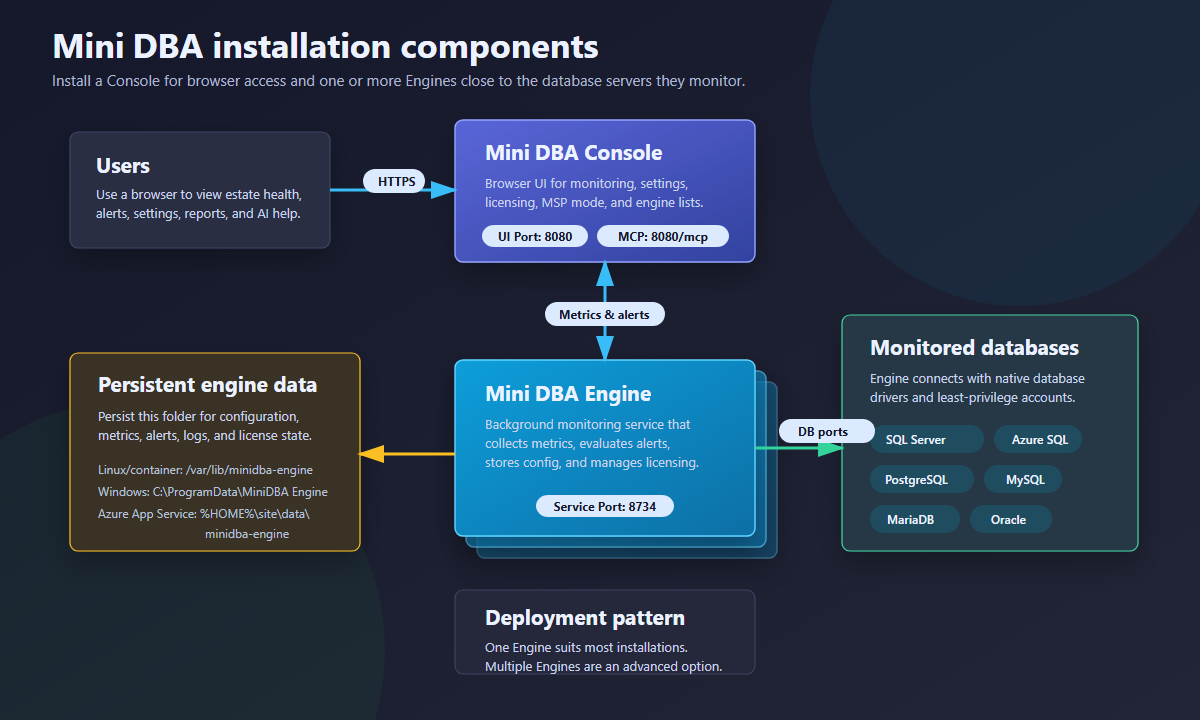
Mini DBA components
- Mini DBA Engine: the background monitoring service that connects to database servers, stores configuration, validates the Engine licence, exposes Engine service endpoints, and collects metrics.
- Mini DBA Console: the web console used by DBAs and administrators to view monitoring data, configure settings, and manage Engines.
Choose Windows or Linux
Choose the operating system that best fits the team that will operate Mini DBA and the network where the databases live. Both options use the same Engine and Console roles, licensing model, database monitoring features, and Console workflow.
| Installation choice | Choose it when | Advantages | Considerations |
|---|---|---|---|
| Windows services | Your administrators already operate Windows servers, need Windows-native service management, or want the most natural fit alongside Windows infrastructure. | Familiar Windows service operations, Start-menu access to operational folders, and straightforward use of Windows administration practices. | Requires Windows Server operations, patching, and service administration. |
| Linux containers | Your platform standard is Linux and Docker, or you want a repeatable Compose-based deployment and upgrade model. | One supported container pattern for Engine and Console, durable bind-mounted data, and repeatable image-based upgrades. | Requires Docker Engine, Docker Compose v2, persistent mounted storage, and Linux/container operational skills. Native Linux packages are not supported. |
Do not choose Linux containers merely because the databases are Linux-hosted, or Windows services merely because one monitored database is SQL Server. The Engine only needs the required network access and database credentials. For Linux, follow Install the Mini DBA Engine container and Install the Mini DBA Console container. For Windows, follow Install Mini DBA on Windows.
Should Engine and Console be on different servers?
Most installations should keep Engine and Console on the same server. It is the simplest layout: one host to patch, one persistent data location to back up, no separate Engine firewall rule, and the Console can use the local/private Engine connection. Start this way unless you have a clear operational reason to split them.
Split Engine and Console onto different servers when one or more of these are true:
- The Engine must sit near databases in a private customer, site, region, or network segment, while the Console belongs in a central management or HTTPS-published zone.
- Security policy requires the browser-facing Console and database-reachable Engine to have separate network identities.
- You need several Engines, each close to a distinct network or customer, connected to one central Console.
- The monitoring estate needs independent scaling, maintenance windows, or operational ownership for Engine and Console.
Splitting adds a private TCP 8734 path, firewall rules, separate persistent data directories, backup responsibility on both hosts, and another server to operate. It is not normally required for performance. The Engine must remain able to reach the monitored database servers; the Console must be able to reach each Engine.
Basic deployment steps
- Choose Windows services or Linux containers, and decide whether the default same-server layout is sufficient.
- Install the Mini DBA Engine where it can reach the databases to monitor.
- Confirm the Engine endpoint is reachable, normally on TCP
8734. - Install or start the Mini DBA Console.
- Open the Console URL used by the deployment.
- Go to Settings and connect the Console to the Engine.
- Activate the Engine licence from Licensing, or allow trial/community behaviour where applicable.
- Go to Servers and add monitored database servers.
Choosing where to install Mini DBA Engine
Install Mini DBA Engine close to the databases it monitors. The Engine should have stable network access to SQL Server, Azure SQL, PostgreSQL, MySQL, MariaDB, Oracle, alert delivery endpoints, and licensing services. In a simple environment, one Engine can monitor all reachable database servers. In a larger estate, use more than one Engine when databases are separated by customer, region, network, firewall boundary, or security ownership.
For managed service providers, a common pattern is one Engine per customer site or isolated network, with one Console connected to multiple Engines. This keeps monitoring traffic local to each customer environment while giving the operations team one browser console through Enterprise View.
Data and state to persist
The Engine data folder is operationally important. It can contain configuration, metrics, alert data, trigger data, connectivity logs, index jobs, licence files, and activation bootstrap files. Treat it as durable application data rather than disposable application binaries.
Common Engine data locations are:
| Deployment | Typical Engine data folder |
|---|---|
| Linux container | /var/lib/minidba-engine inside the container; the host bind-mounted directory is the durable location. |
| Windows service | C:\ProgramData\MiniDBA Engine |
| Azure App Service | %HOME%\site\data\minidba-engine |
Persist these items for reliable operation:
- Engine app-data folder.
- Console Engine connection configuration.
- Console data-protection keys, if the Console is hosted in a container or replaced by deployment automation.
- Any external configuration files used to connect the Console to Engines.
Before upgrading Mini DBA, back up Engine configuration and data folders. This protects monitoring settings, alert history, licence state, and local configuration if the upgrade needs to be rolled back.
Security and service accounts
Mini DBA should not require broad administrator accounts for routine database monitoring. After the Engine and Console are installed, create platform-specific monitoring users using:
- SQL Server connection and permissions
- Azure SQL connection and permissions
- PostgreSQL connection and permissions
- MySQL and MariaDB connection and permissions
- Oracle connection and permissions
Use a separate operating system or cloud provider credential only when you want host-level CPU, memory, drive, or disk I/O metrics. See Host OS Login for what that access grants.
Network requirements
The Console must be able to reach each Mini DBA Engine service endpoint. Each Mini DBA Engine must be able to reach the database servers it monitors and any outbound services required for licensing, alert notifications, AI provider calls, or integrations.
Common ports:
- Mini DBA Engine service:
8734. - Mini DBA Console MCP endpoint: served by the Console HTTP site at
/mcp. - Mini DBA Console HTTP container port:
8080, normally placed behind HTTPS for production. - Database platform ports such as SQL Server
1433, PostgreSQL5432, MySQL/MariaDB3306, and Oracle listener ports.
Production recommendations
- Run the Console behind HTTPS when browser access extends beyond a trusted private network.
- Persist Engine and Console data folders.
- Use service accounts with least-privilege monitoring permissions.
- Configure web proxy settings if outbound internet access must pass through a proxy.
- Configure email and alert integrations before relying on production notifications.
- Back up Engine and Console data before upgrading.
Installation FAQ
Which component monitors the database servers?
Mini DBA Engine monitors database servers. Mini DBA Console is the browser UI that connects to one or more Engines.
Can the Console and Engine run on different hosts?
Yes, but most installations keep them together. Split them when network, security, geographic, customer, or operational boundaries justify the extra connection and server-management overhead.
Should the Console be public on the internet?
For production, run the Console behind HTTPS and use the authentication and kiosk settings appropriate for the deployment. Do not expose administrative settings or secrets to public users.
What should I check after installing?
Open Settings, connect to the Engine, check Licensing, add one test database server, then review Service Log for startup or sampling errors.
Related pages
- Install Mini DBA on Windows
- Install the Mini DBA Engine container on Linux
- Install the Mini DBA Console container on Linux
- Getting started
- Licensing
- Settings
- Connect database servers