Mini DBA execution plan analysis helps DBAs and developers move from "this query is expensive" to "this is the part of the plan I should investigate first." Execution plans are available from different pages depending on the database platform, permissions, and collected data. Use this page as the cross-platform guide, then open the database-specific page for the execution plan controls used by SQL Server, Azure SQL, PostgreSQL, MySQL, MariaDB, or Oracle.
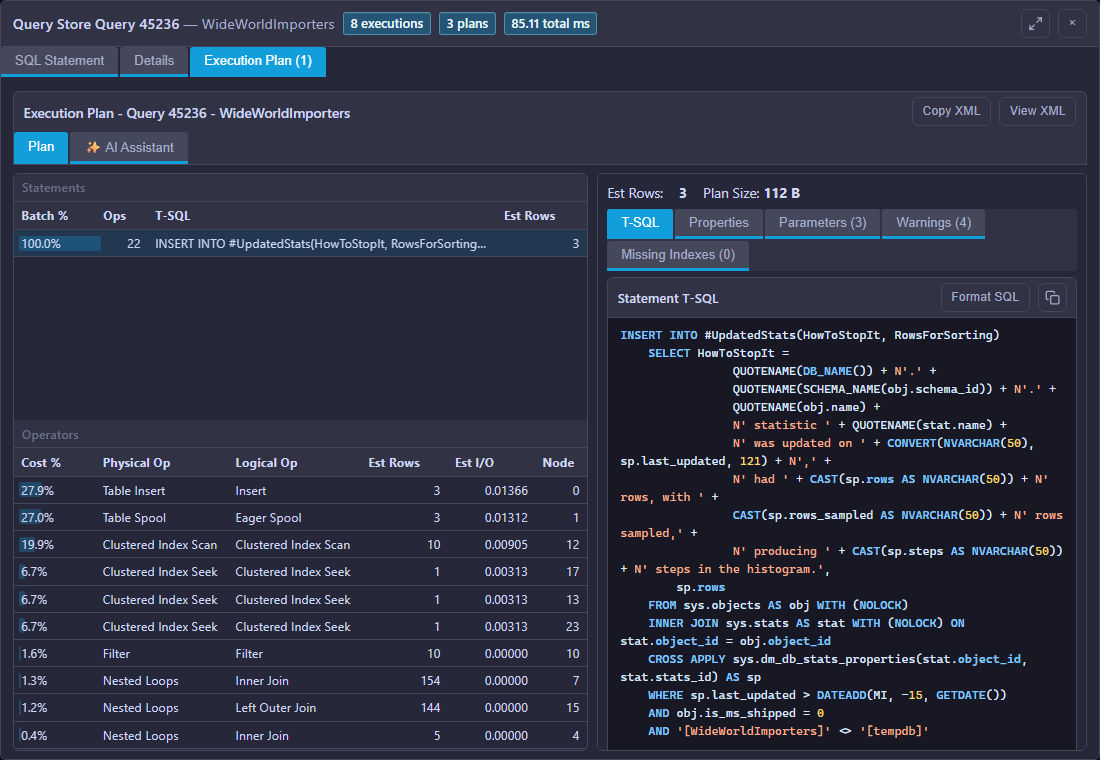
Where execution plans appear
Execution plans are most useful after you have already identified a candidate query from Activity, Queries, Profiler, Query Store, or a database detail page. Mini DBA surfaces plans where the monitored platform exposes enough information and the monitoring account has permission to retrieve it.
Common entry points include:
- Activity and session detail for currently running work.
- Queries or Cached SQL for expensive statements collected from current workload or plan cache.
- Query Store for SQL Server and Azure SQL historical plan analysis.
- SQL Server Database Detail query tabs for database-scoped query investigation.
- Profiler or recent statement capture for SQL Server and Azure SQL where a captured event has plan context.
- PostgreSQL and MySQL/MariaDB query detail where EXPLAIN data is available.
- Oracle plan dialogs for SQL_ID and child cursor review where plan data can be fetched.
How to use plans safely
An execution plan is evidence, not a complete diagnosis by itself. Always compare the plan with runtime facts such as duration, CPU, reads, writes, waits, execution count, row counts, blocking, and the time range of the user complaint. A plan that looks inefficient may not be the best first target if it runs rarely. A plan with a small per-run cost may be a major issue if it runs thousands of times per minute.
Before making a tuning change, collect:
- Query text or query identifier.
- Database, schema, user, application, and time window.
- Runtime metrics before the change.
- The plan shape and the operators that look expensive.
- Wait or blocking evidence if the query was delayed by another session.
- Index, statistics, or object evidence that supports the recommendation.
Drill into expensive operators
Mini DBA plan controls are designed to help you drill from the statement into the costly part of the plan. On platforms that expose operator-level detail, sort or review by cost, row estimate, access method, joins, predicates, and object names. Expensive operators are not automatically wrong, but they are useful starting points.
When reviewing operators, ask:
- Is this operator expensive because it reads many rows, sorts, joins, spills, or looks up missing columns?
- Does the plan estimate far fewer or far more rows than the query appears to process?
- Is the access method appropriate for the predicate, table size, and expected result set?
- Are warnings, missing index suggestions, stale statistics, or poor cardinality estimates visible?
- Does the expensive operator align with the page that identified the symptom, such as CPU, I/O, waits, or Query Store regression?
Ask AI from a plan
Where the plan control includes an AI Assistant tab, Mini DBA passes focused plan context rather than only the general server snapshot. Depending on the platform, this can include SQL Server or Azure SQL plan XML, PostgreSQL plan text and XML, MySQL/MariaDB plan tree, JSON, and operator rows, or Oracle plan text and operator predicates.
Good AI plan prompts include:
Which operator should I investigate first and what evidence supports that?Does this plan suggest missing indexes, stale statistics, bad row estimates, parameter sensitivity, or excessive sorting?Give me a safe tuning order. Separate query rewrite, index, statistics, and capacity recommendations.For more on the AI workflow, see Mini DBA AI Assistant and Performance Tuning With AI.
Database-specific plan guides
Each database engine exposes plans differently. Use the relevant guide for the controls you see in the Mini DBA Console:
- SQL Server Execution Plans
- Azure SQL Execution Plans
- PostgreSQL Execution Plans
- MySQL And MariaDB Execution Plans
- Oracle Execution Plans
Related pages
- SQL Server Cached SQL
- SQL Server Query Store
- Azure SQL Queries
- PostgreSQL Queries
- MySQL And MariaDB Activity
- Oracle Activity
- AI Context, Privacy, And Tokens